
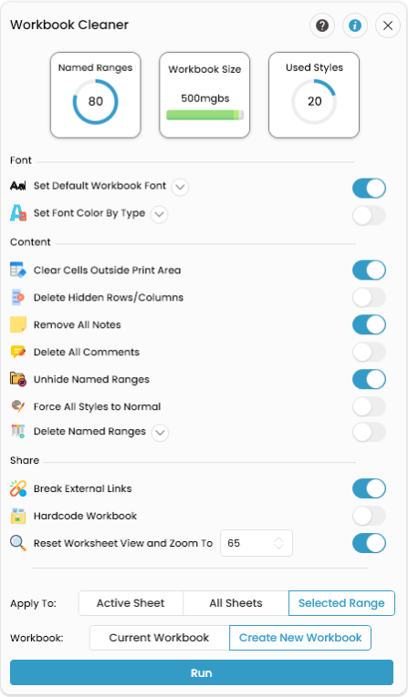
Workbook Cleaner
A task pane that scans an Excel workbook and applies a curated set of cleanup operations - font normalization, color-by-cell-type formatting, dead-content removal, named-range cleanup, gridline hiding, and external-link breaking - in one batch.
When to use it
- Preparing a finished model for delivery to a client, lender, or investor
- Shrinking a bloated
.xlsxfile by stripping unused styles, hidden rows, and out-of-print-area content - Standardizing fonts and constant/formula/external-formula colors across a workbook
- Breaking external links before emailing a copy outside the company
How it works
- 1Open the Workbook Cleaner task pane from the Productivity Tools group.
- 2Choose the scope: All Sheets, Active Sheet, or Selected Range; and the target: Current workbook or a new copy.
- 3Click Scan - the pane checks each option and ticks the boxes for issues it actually found, with a message like "Found cells with font mismatch."
- 4Adjust any settings (default font, cell-type colors, zoom level, named-range filter), then click Run.
- 5SkySuite executes selected cleaners silently against the chosen scope and shows "Operation succeeded!" when done.
Tips & shortcuts
- Pick Create a new workbook when you want to keep the original untouched - SkySuite saves a copy, cleans the copy, and opens it.
- "Force All Styles To Normal" can only run reliably on the copy mode for All Sheets - the pane auto-ticks it when both conditions are met and there is more than one used style.
- Each clean option also has its own dedicated keyboard shortcut so power users can run a single cleaner without opening the pane.
- The pane warns and refuses to run if the active workbook or active sheet has changed since it was opened - hit Refresh first.